Embedded Forms
Introduction
The Embedded Form feature is a powerful component of our logistic systems that enables you to create custom forms for collecting information, processing orders, and more. This documentation will guide you through the process of working with embedded forms, including accessing the Embedded Form List, creating embedded forms, and editing them to tailor to your specific needs.
Embedded Form List
Before creating a new embedded form, it's helpful to familiarize yourself with your existing forms and their statuses. Here's how to access the Embedded Form List:
- Navigate to the "Embedded Forms" section of your dashboard.
In the Embedded Form List, you'll see a summary of your existing forms, including their titles and current statuses (e.g., active, inactive).
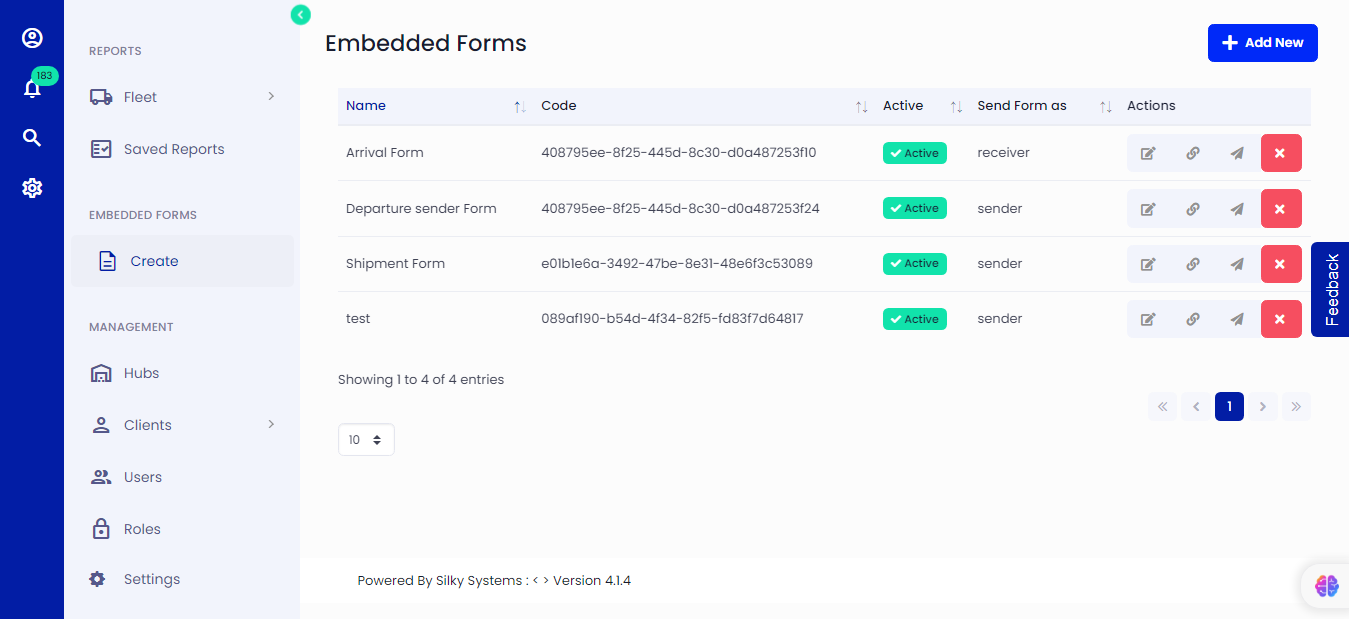 Figure.01 Embedded Form List
Thank you for providing specific details on how the Embedded Form feature works. Here's an updated section on "Creating an Embedded Form" with the additional information you provided:
Creating an Embedded Form
To create an embedded form, click on Add New and follow these steps:
Form Information:
- Form Name: Provide a clear and descriptive name for your form.
- Description: Optionally, include a brief description to inform users of the form's purpose.
- Number of Pages: Specify how many pages your form will have.
- Action: Select whether the form will trigger a 'Create Shipment' action or have 'None' as the action.
- Click "Next" to proceed.
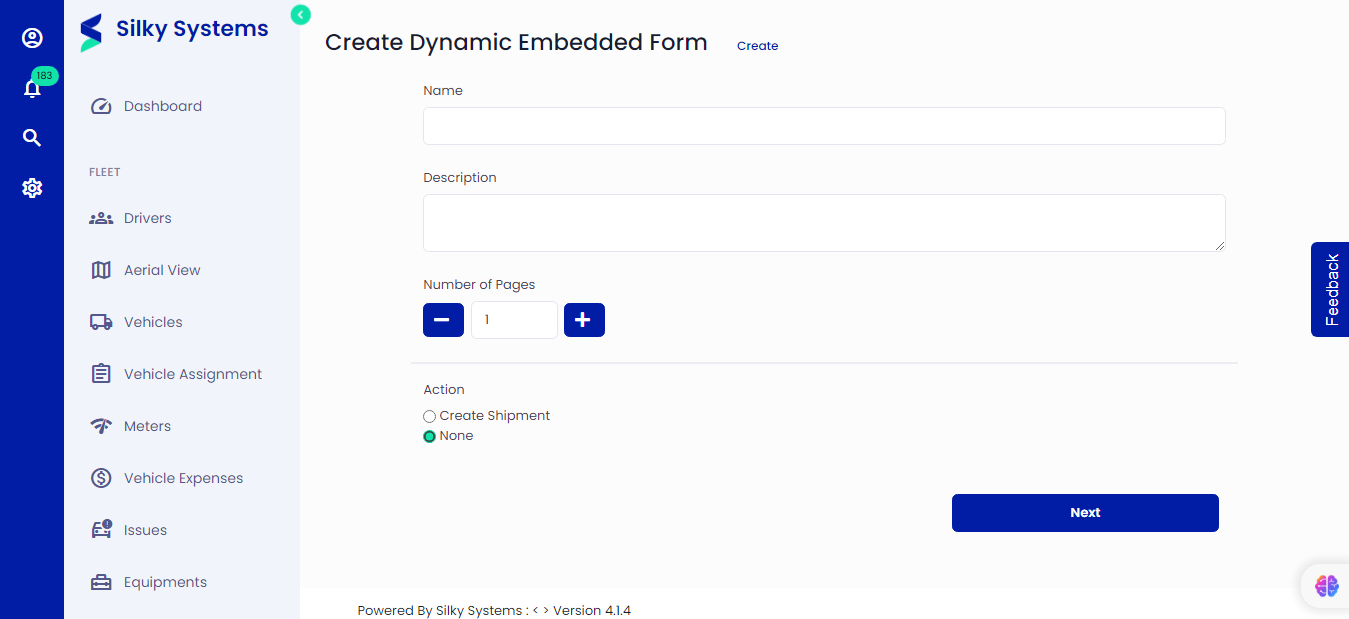 Figure.02 Embedded Form
Page and Section Configuration:
- Page Title: Provide a title for the current page of your form.
- Click "Add Section" to organize your form into sections.
Adding a Section:
- Section Name: Provide a name for the section.
- Container Name (optional): Specify the container name if needed.
- Click "Add Fields" to add fields within the section.
Adding Fields:
- Field Name: Provide a name for the field.
- Field Type: You can add various fields to your form, such as text fields, checkboxes, radio buttons, and more. Customize these fields to collect the information you need. Make sure to specify if a field is required or optional.
- Click "Next" to save the form.
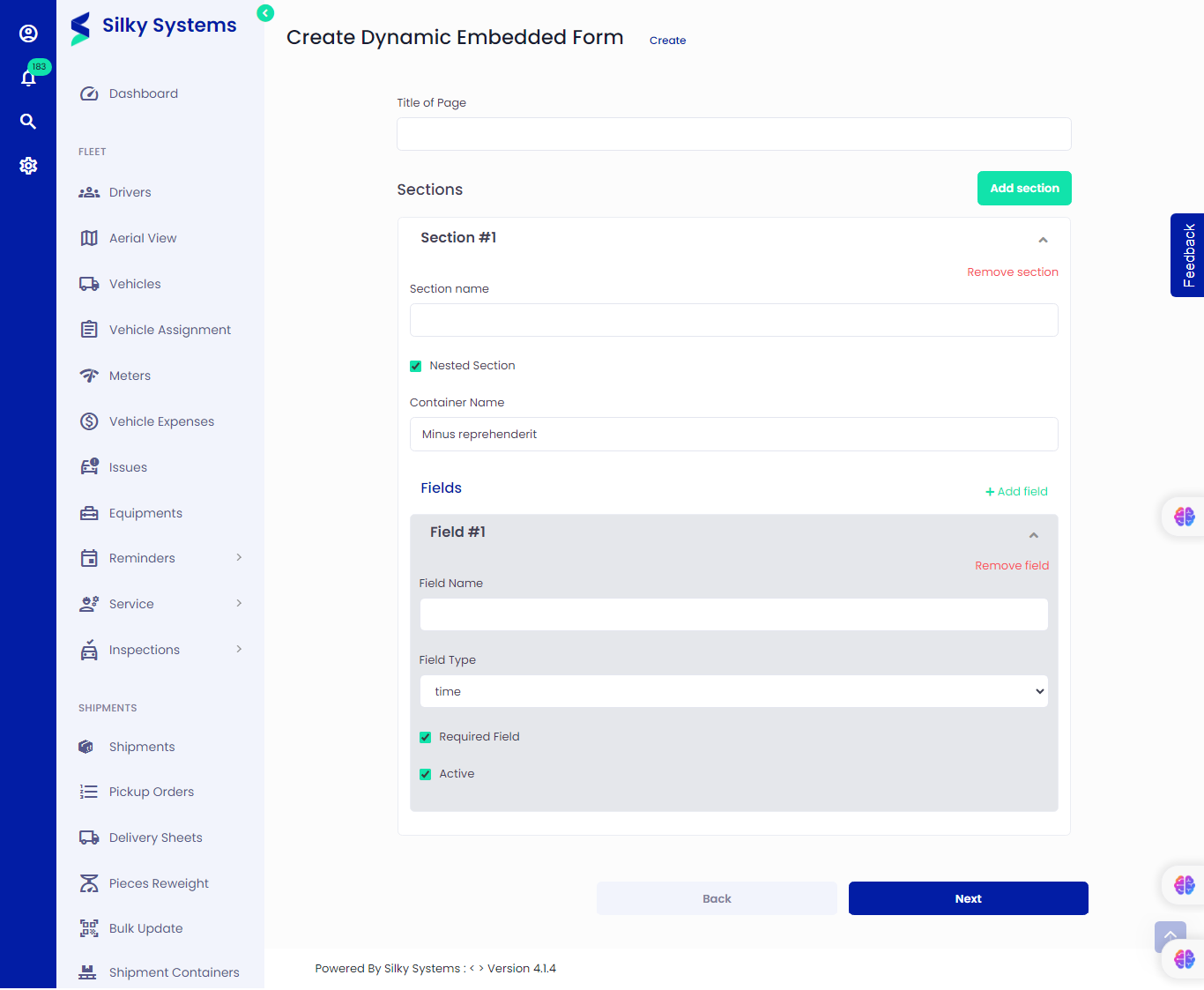 Figure.02 Embedded Form
Editing an Embedded Form
Modifying Form Settings
To update form settings, navigate to the form you want to edit and click on the edit icon. Here, you can modify the form's information.